
You’ll need a paid Claude plan (Pro, Team, or Max). The free plan doesn’t support custom connectors.
Fastest path
The Open Claude button on your Connections page opens Claude at the exact right screen — no clicking through Settings. That’s the path this guide follows. Prefer to do it manually? Skip to Manual setup.Your connector URL
You’ll need this when Claude asks for the MCP server URL.Add Aeris as a connector
Fill in the details
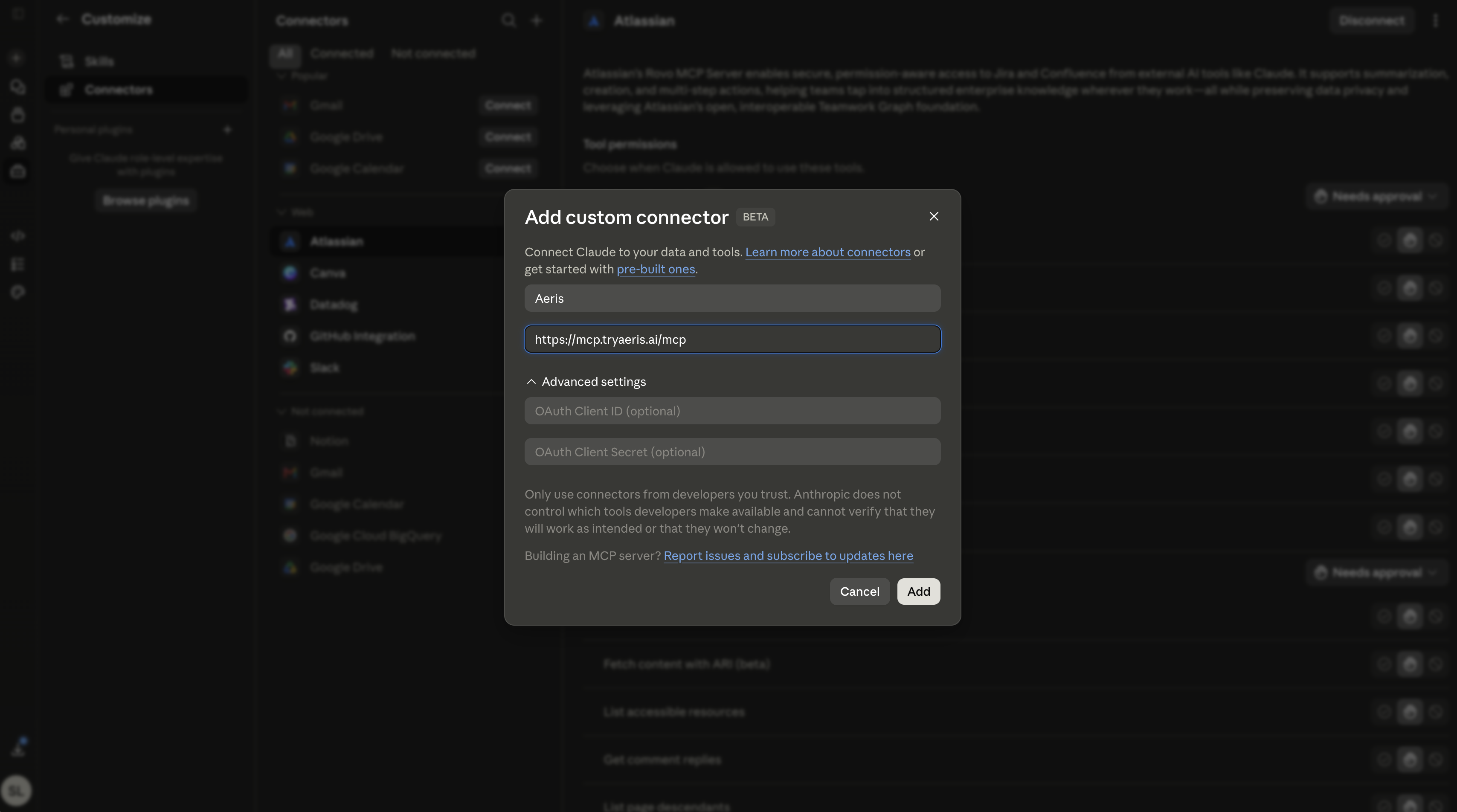
Claude opens directly at the Add custom connector modal. Enter: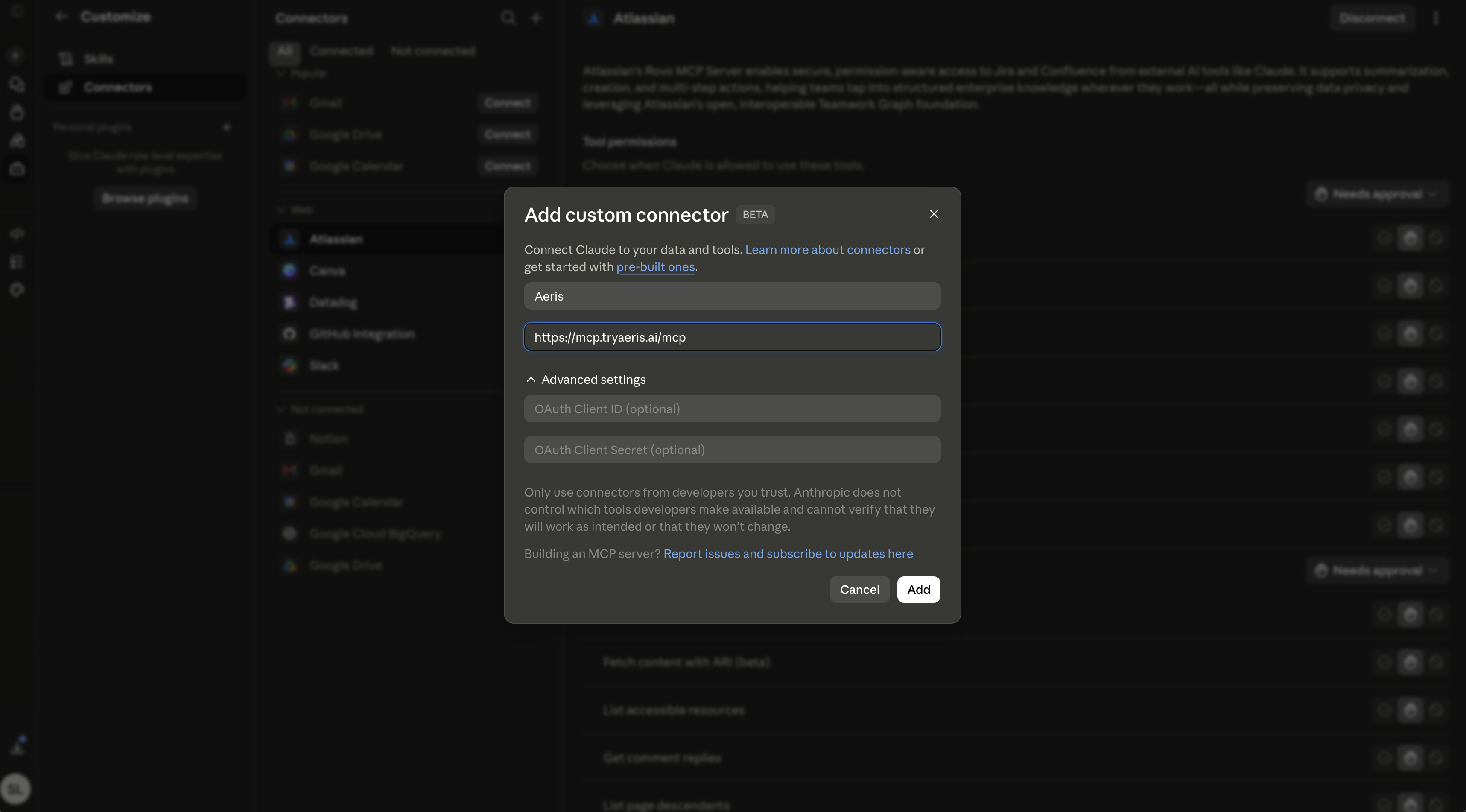
- Name —
Aeris - Remote MCP server URL —
https://mcp.tryaeris.ai/mcp
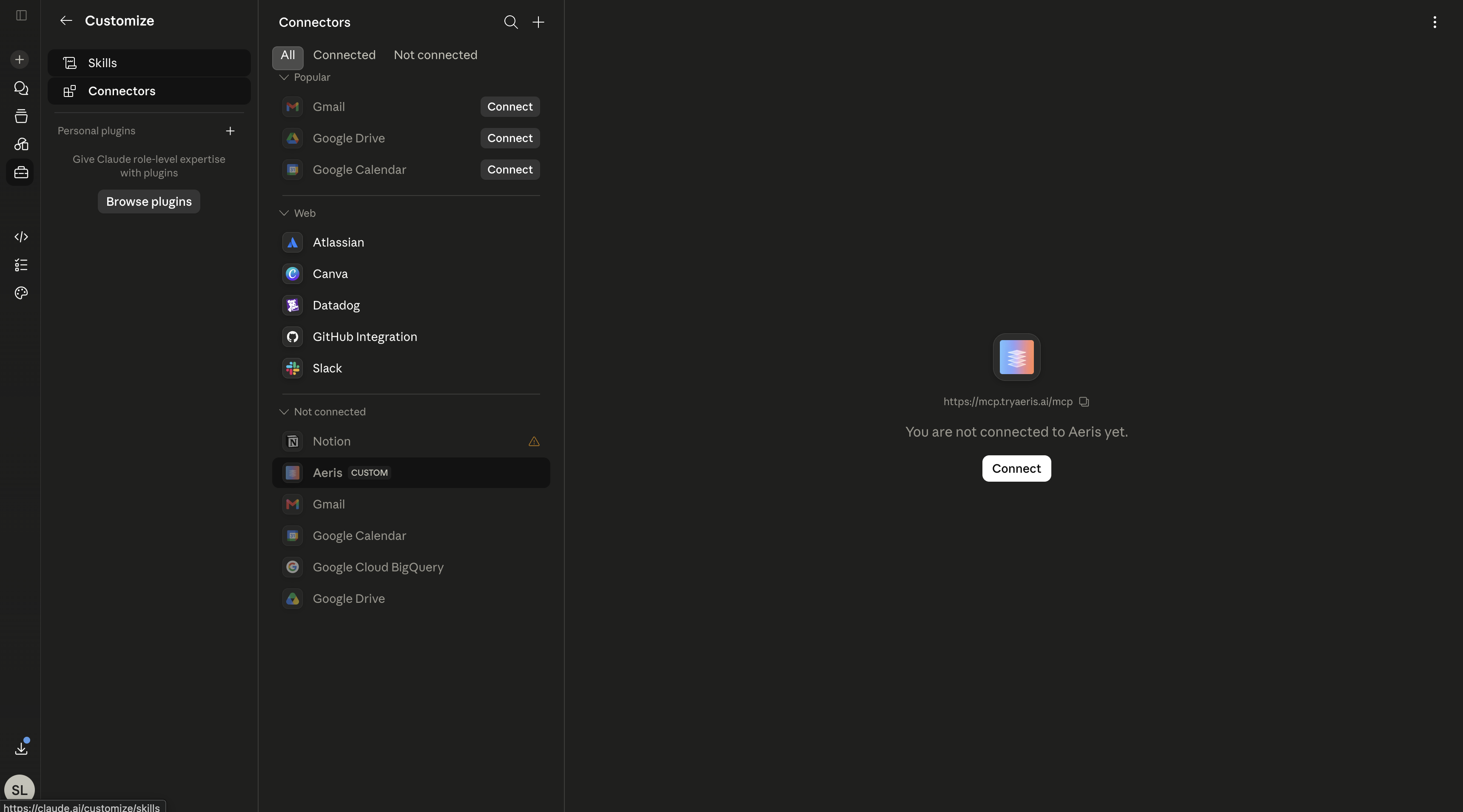
Sign in with Aeris
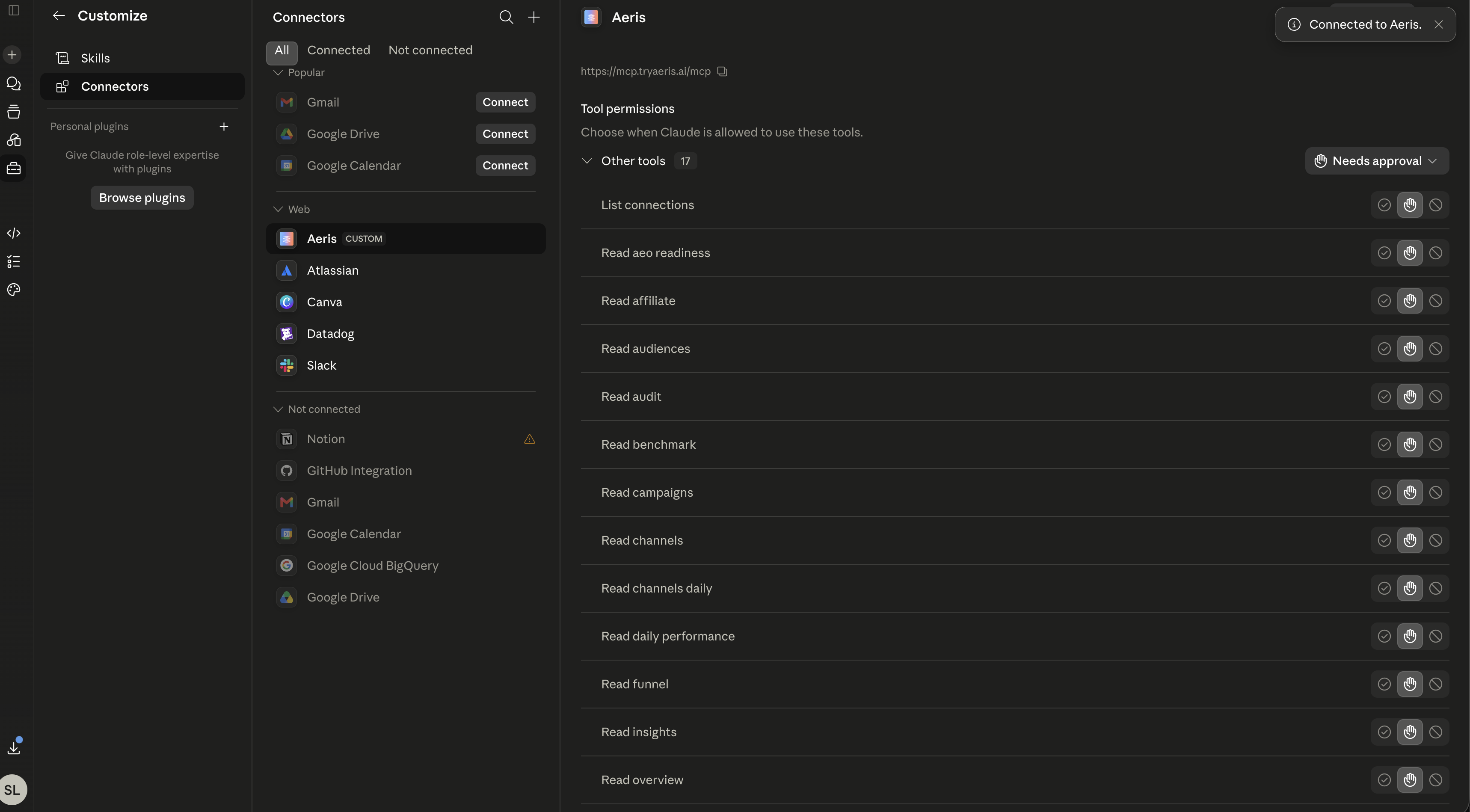
Claude opens the Aeris authorization page. If you’re already signed in on tryaeris.ai, you’ll land straight on the consent screen. If not, you’ll be asked to sign in first, then bounced right back.Review the scopes Claude is asking for (Read and Draft by default; the Apply scope stays behind a per-action approval), then click Allow Claude to connect.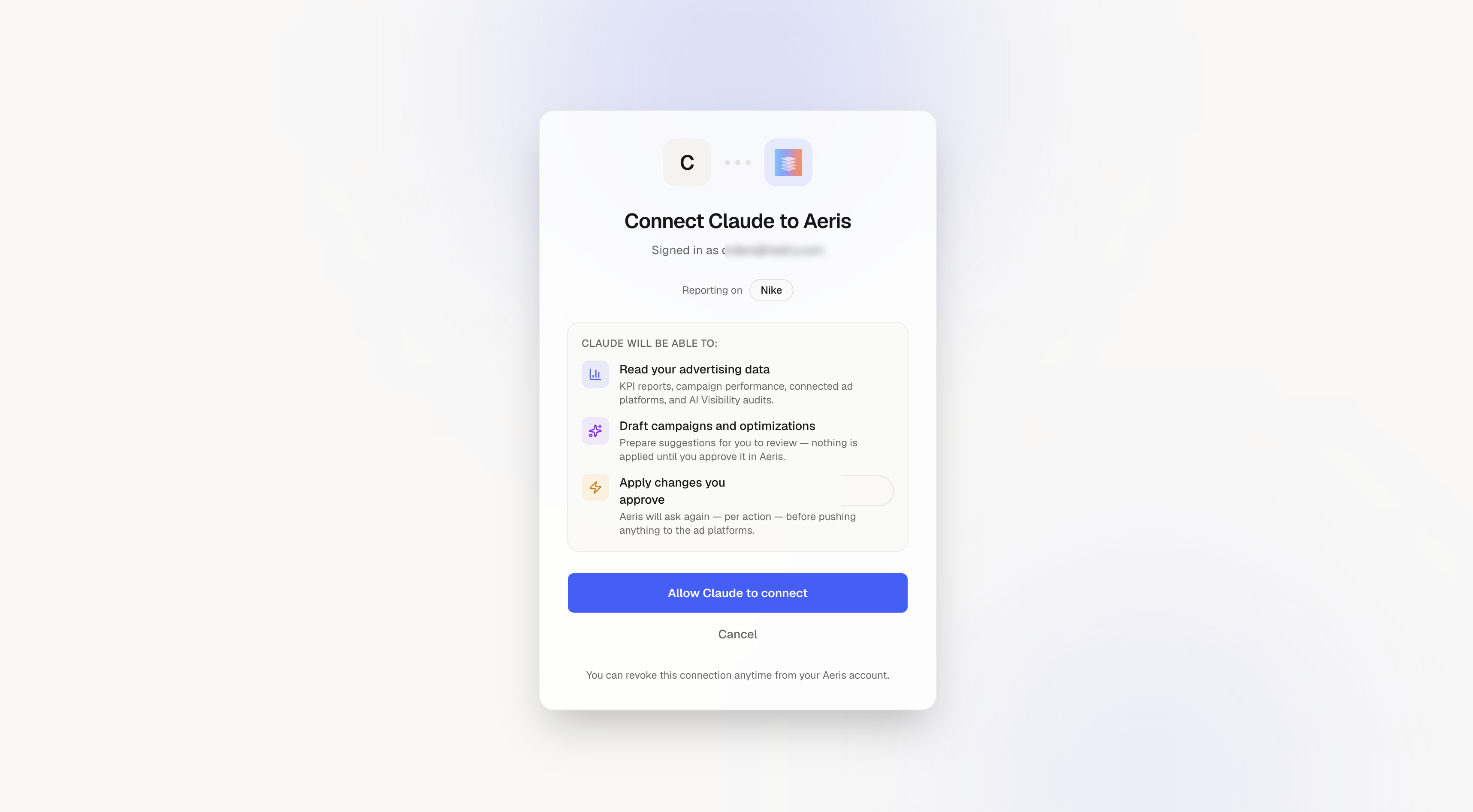
Try it
Start a new chat in Claude and ask for what you want: Claude uses Aeris tools to answer — real numbers, real chart, right in the chat.What Claude can do (by default)
- Read — pull KPI reports, campaign performance, connected ad platforms, and AEO audits.
- Draft — prepare campaigns and optimizations for you to review. Nothing is applied until you approve it inside Aeris.
- Apply — off by default. When Claude proposes an action that would spend money or change a live campaign, Aeris will ask you to approve per action, not up front.
- Go to claude.ai, click your profile avatar at the bottom-left, then Settings.
- Open the Connectors tab → click Customize.
- Click the + button next to Connectors — that opens the same modal shown in Step 1 above. Continue from there.
Troubleshooting
"Failed to register with Aeris login service"
"Failed to register with Aeris login service"
Claude’s Dynamic Client Registration call couldn’t reach our OAuth server. Delete the connector, restart Claude, and re-add it. If it still fails after one retry, email us at [email protected] — include the reference id Claude shows (
ofid_...).Consent page opens but shows an empty workspace picker
Consent page opens but shows an empty workspace picker
You’re signed into Aeris on a different browser than the one Claude used for the auth popup. Sign in on the browser Claude used, then click Connect again.
Charts show the numbers but no image
Charts show the numbers but no image
Charts arrive as inline PNGs. If your Claude client is older than the 2025-06-18 protocol version, upgrade Claude Desktop and reconnect.
Next steps
Connect to ChatGPT
Same power, different assistant.
FAQ
Plans, security, revoking, changing workspace.